
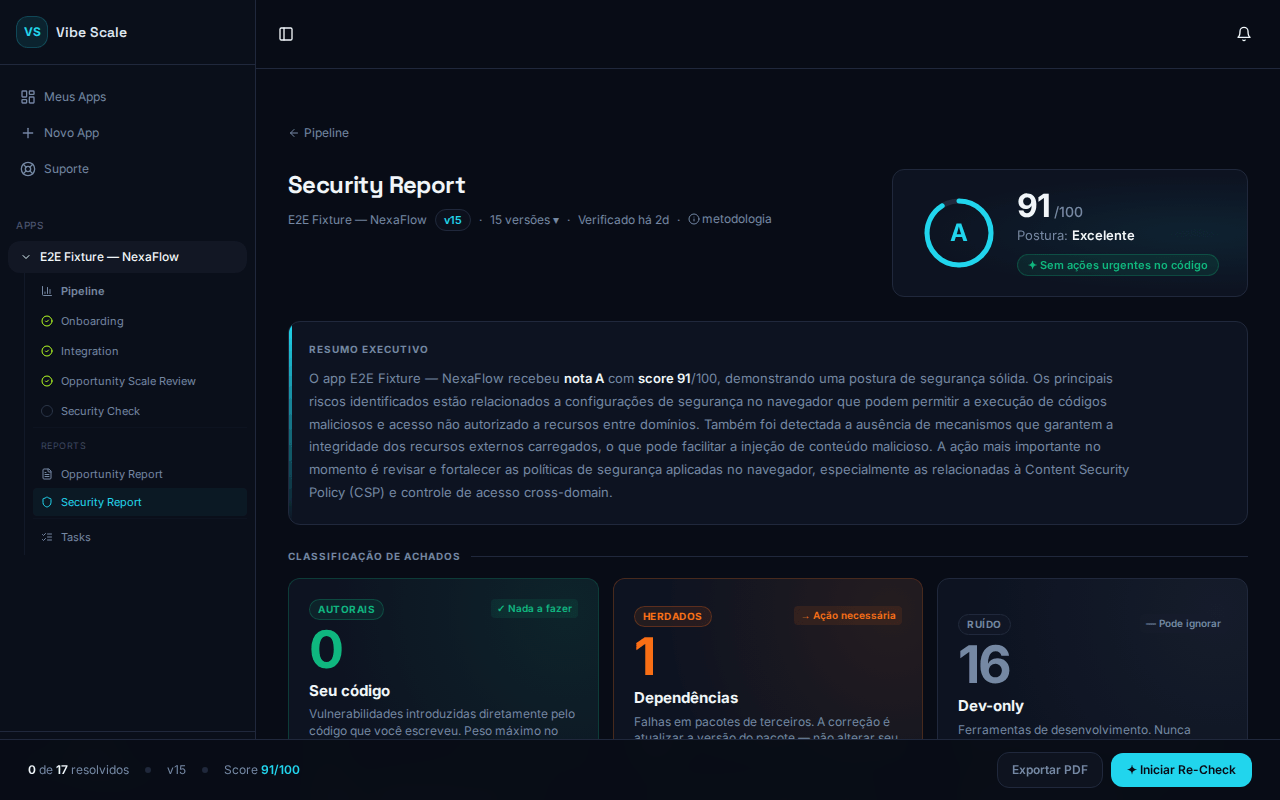
VibeScale Security Report — grade, score, findings by category, and remediation actions
Grade and Score
The report header displays:- Grade letter — from A (best) to E (critical), with labels in English:
- Numeric score — from 0 to 100.
- Summary — a sentence reflecting the overall status:
- “X custom items need attention”
- “Only inherited dependencies — no urgent actions”
- “No issues detected”
Finding Categories
Each finding belongs to one of the three categories below. Understanding the difference is the most important step to prioritize correctly.Custom — issues in your own code
Custom — issues in your own code
Vulnerabilities introduced directly by the code your team wrote. Prioritize these. They carry the highest weight in the score. If the Custom count is greater than zero, the score will be significantly affected.
Inherited — vulnerabilities in third-party libraries
Inherited — vulnerabilities in third-party libraries
Flaws in third-party packages your project imports. They deserve review — especially critical and high severity — but fixing them depends on updating the package version, not directly changing your code.
Noise — development-only tools
Noise — development-only tools
Findings from packages used only during development that never reach production. They do not affect your score. They are hidden by default.To view them, click “Show X noise items (dev-only)” at the bottom of the list.
Severity Levels
Within each category, findings are ordered by severity:EPSS Badges
Some findings display an additional badge indicating real-world exploitation risk:🔴 Active Exploitation
≥ 90th percentile of EPSS. This finding is among the most likely to be exploited in the next 30 days, according to FIRST.org data. Prioritize fixing it immediately.
🟠 Elevated Risk
Between the 50th and 90th percentile. Above the industry median. Worth scheduling a fix.
EPSS measures the actual probability of exploitation, not just technical severity. A Medium severity finding with an Active Exploitation badge may be more urgent than a High severity without a badge.
Finding Details
Click any finding to see:- Title and severity badge (e.g., CRITICAL RISK, HIGH RISK)
- Problem description
- Affected location — file path or module name
- Code snippet — when available
- Suggested fix
- Classification — Custom / Inherited / Noise
Important: The suggested fix is only shown if it is considered useful and does not duplicate the finding’s title or description. This avoids repetitive information and improves report clarity.
Available Actions
Mark as Resolved
Click the checkbox next to the finding to mark it as resolved after applying the fix.Create a Task in Kanban
Click Create Task to send the finding directly to your Kanban board. Priority is mapped automatically:
After creating the task, a status badge appears on the finding: To Do / In Progress / In Review / Done.
Use AI Fix Prompt
Click AI Agent Fix Prompt to copy a remediation prompt ready to paste into your preferred code assistant — Copilot, Cursor, Bolt, or similar. The prompt includes the finding context and fix instructions.Note: The fix prompt is only shown when the suggested remediation is considered useful and not repetitive compared to the finding’s title or description.